AWS Route 53 DNS Resolver Firewall

Amazon Route 53 Resolver Firewall Integration Configuration Guide Blog post image. Image contains A grey, orange and blue background with the Amazon AWS, Route 53 and Malware Patrol logos.

There are many security tools available, each serving a unique purpose in safeguarding your digital environment. Among them, the DNS firewall is one of the most effective and well-established. It acts as a critical line of defense against cyber threats by filtering and blocking access to malware and phishing websites, and data exfiltration points among others malicious resources. This prevents users from inadvertently visiting dangerous sites or falling victim to cyber attacks.

Amazon Route 53 is a Domain Name System (DNS) service that connects user requests to Internet applications running on AWS or on-premises. Among the features this service offers is protection via the Route 53 Resolver DNS Firewall. It allows the use of AWS Managed Domain Lists, as well as custom Domain Lists (outside sources or your own). This step-by-step guide shows how to integrate Malware Patrol’s Malicious Domains threat intelligence with the AWS Route 53 Resolver DNS Firewall.

Add Malware Patrol’s Malicious Domains List to Amazon Route 53 Resolver DNS Firewall

You’ll need your Malware Patrol subscription username and password to proceed.

Malware Patrol uses CloudFormation to create all the necessary AWS systems that keep a Route 53 Domain list updated with Malware Patrol data. Basically, it creates an S3 bucket and a Lambda function that downloads and updates the Malicious Domains feed every hour, importing it into the Route 53 Domain List once it’s update.

The process is simple. Start by signing into your AWS Management Console and click the following link:

(URL will be provided by your account manager)

When you click on this link, you will see fields for inputting your Malware Patrol username and password. Click “Create Stack”. (Do NOT modify any other field on the page!) The following resources are generated automatically:

  • CloudFormation stack: DomainListForMalwarePatrolRoute53
  • EventBridge rule: ScheduleForMalwarePatrolRoute53
  • Bucket: domainlistformalwarepatr-s3bucketformalwarepatrol-RANDOMNUMBER
  • Lambda Function: LambdaForMalwarePatrolRoute53
  • DNS Firewall Domain List: malware-patrol-malicious-domains

The following screenshots show the process that begins once you have clicked on the link above.

AWS Route 53 - DNS Firewall Malware Patrol Integration guide image - Step 1

In the parameters section, enter your customer username and password.

AWS Route 53 - DNS Firewall Malware Patrol Integration guide image - Step 2

In the capabilities section, you must acknowledge the IAM resources-related information. Click “Create Stack”.

AWS Route 53 - DNS Firewall Malware Patrol Integration guide image - Step 3

The stack will show as being in progress for a few moments.

AWS Route 53 - DNS Firewall Malware Patrol Integration guide image - Step 4

Once it is complete, you will see the following screen:

AWS Route 53 - DNS Firewall Malware Patrol Integration guide image - Step 5

Navigate to your Route 53 console. You can do this by searching Route 53 in the search bar at the top of the screen.

AWS Route 53 - DNS Firewall Malware Patrol Integration guide image - Step 6

From your Route 53 dashboard, select DNS Firewall from the left side menu.

AWS Route 53 - DNS Firewall Malware Patrol Integration guide image - Step 7

Click on Rule Groups from the DNS Firewall entry on the left side menu and then click Create rule group.

AWS Route 53 - DNS Firewall Malware Patrol Integration guide image - Step 8

Give the rule group a name and click Next.

AWS Route 53 - DNS Firewall Malware Patrol Integration guide image - Step 9

Select Add rule.

AWS Route 53 - DNS Firewall Malware Patrol Integration guide image - Step 10

Name the rule and select “Add my own domain list”. Under “Choose or create a new domain list”, select the Malware Patrol list.

AWS Route 53 - DNS Firewall Malware Patrol Integration guide image - Step 11

For Action, drop down and select BLOCK and then select NXDOMAIN. Click Add rule.

AWS Route 53 - DNS Firewall Malware Patrol Integration guide image - Step 12

AWS Route 53 - DNS Firewall Malware Patrol Integration guide image - Step 13

Congratulations, your Malware Patrol Malicious Domains threat list is active and ready to protect your organization against the latest threats!

The next steps will vary by organization. Generally, you will want to enable firewall protection for your VPC(s). An Amazon resource outlining this process can be found below.

Notice that the newly created Domain List may take more than an hour to populate depending on how long it takes for AWS to execute the Lambda function. After that, updates will be automatically pushed every hour.

Amazon Route 53 Resources

  • Managing Your Own Domain Lists: “You can create your own domain lists to specify domain categories that you either don’t find in the managed domain list offerings or that you prefer to handle on your own.
  • Configuring logging for DNS Firewall: “You can evaluate your DNS Firewall rules by using Amazon CloudWatch metrics and the Resolver query logs. The logs provide the domain list name for all alerts and blocking actions.”
  • DNS Firewall rule groups and rules: “This section describes the settings that you can configure for your DNS Firewall rule groups and rules, to define the DNS Firewall behavior for your VPCs. It also describes how to manage the settings for your rule groups and rules.”
  • Enabling Route 53 Resolver DNS Firewall protections for your VPC: “You enable DNS Firewall protections for your VPC by associating one or more rule groups with the VPC. Whenever a VPC is associated with a DNS Firewall rule group, Route 53 Resolver provides the following DNS Firewall protections […]”

If you encounter any problems with your Route 53 DNS Resolver Firewall integration, please contact your account manager or send an email to support ( @ ) malwarepatrol.net.

Malware Patrol + Palo Alto NGFW

??

Palo Alto NGFW Configuration Guide blog post image

Malware Patrol offers the following Enterprise feeds formatted for use with the Palo Alto NGFW. Customers choose the feed(s) that meet their needs:

1) DNS-over-HTTPS (DoH) Servers: This feed gives security teams control over the use of DoH in their environment. DoH wraps DNS queries in an HTTPS request, which can disguise malicious traffic. Several malware families take advantage of this to use DoH for their C2 communications.

2) Malicious Domains: Prevent access to domains hosting malware, ransomware, phishing, cryptominers, and command and control servers (C2s) for over a hundred malware and ransomware families. Blocking C2 communication disrupts the attacker’s ability to execute malicious commands and navigate laterally within the network, essentially breaking the cyber kill chain.

3) Malicious IPs: Provides a first line of defense against threats for which signature-based indicators may not yet be available. The broad coverage of IPs may also extend protection to attacks from adversaries utilizing the same infrastructure. The feed includes IPs actively hosting malicious malware and ransomware files, phishing sites, as well as C2 servers.

4) Malware URLs: This feed contains URLs known to be hosting malware and ransomware binaries. By leveraging malicious URL feeds, security tools can block access to harmful links while still allowing legitimate services hosted on the same domain. This level of precision prevents the unnecessary blocking of popular and legitimate platforms, such as Dropbox or Google Drive, where malicious content is frequently hosted.

Integrating external threat intelligence into your organization’s firewall is a crucial step in fortifying cybersecurity defenses. Organizations gain a more comprehensive and well-rounded view of emerging threats when they diversify their information sources. Different providers may have varying expertise and access to distinct threat data, offering a broader spectrum of insights.

This multi-sourced approach enhances the firewall’s ability to detect and block a wider range of malicious activities, reducing the risk of missing critical threats. It’s a strategic move that ensures a more robust and adaptable security posture, minimizing the chances of falling victim to sophisticated cyberattacks.

Malware Patrol offers free evaluations of our threat intelligence feeds, including those for Palo Alto NGFW. Request your evaluation here.  


Palo Alto NGFW External Dynamic Lists

Additional threat intelligence sources are integrated into Palo Alto Networks NGFW’s PAN-OS as “External Dynamic Lists” or EDLs. According to the Palo Alto NGFW PAN-OS Administrator’s Guide: “An External Dynamic List is a text file that is hosted on an external web server so that the firewall can import objects—IP addresses, URLs, domains—included in the list and enforce policy. To enforce policy on the entries included in the external dynamic list, you must reference the list in a supported policy rule or profile. When multiple lists are referenced, you can prioritize the order of evaluation to make sure the most important EDLs are committed before capacity limits are reached. As you modify the list, the firewall dynamically imports the list at the configured interval and enforces policy without the need to make a configuration change or a commit on the firewall.” Users can add up to 30 EDLs. There are per-firewall model restrictions on the number of entries allowed for each of the following object types: 1) IP address and 2) URL & Domain. Check the above referenced administrator’s guide for more details.

Pre-Integration – External Source Certificate Profiles

When EDL sources, such as Malware Patrol, are secured with SSL, you will need a certificate profile in order to authenticate the server hosting your data feed(s). Both the root CA (certificate authority) and intermediate CA certificates are required. Per the Administrator’s Guide (link above), you should “use the same certificate profile to authenticate external dynamic lists from the same source URL. If you assign different certificate profiles to external dynamic lists from the same source URL, the firewall counts each list as a unique external dynamic list.”

To get the certificates for Malware Patrol:

1) Navigate to https://malwarepatrol.net (We used the Firefox browser – instructions will vary for others.)

2) (Left) Click on the site security padlock icon

An image in the Pre-Integration steps for the malware and palo alto networks ngfw configuration guide

3) Select Connection Secure –> More Information.

A Pre-Integration step image in the malware and palo alto networks ngfw configuration guide 

4) Click View Certificate.

A Pre-Integration step 4 image in the malware and palo alto networks ngfw configuration guide   

5) In the certificate information dialog box that appears:

  • Click on the Cloudflare Inc ECC CA-3 tab
  • Right click the PEM (cert) link
  • Select Save Link As and save as ‘root.pem’ to your computer
  • Click on the Baltimore CyberTrust Root tab
  • Right click the PEM (cert) link
  • Select Save Link As and save as ‘intermediate.pem’ to your computer.

A Pre-Integration step 5 image in the malware and palo alto networks ngfw configuration guide

A Pre-Integration step 5.1 image in the malware and palo alto networks ngfw configuration guide

A Pre-Integration step 5.2 image in the malware and palo alto networks ngfw configuration guide

A Pre-Integration step 5.3 image in the malware and palo alto networks ngfw configuration guide

Add Certificate Profiles to PAN-OS

6) Log in to your Palo Alto NGFW interface.

  • Name: Cloudflare
  • Click the +Add button at the bottom left of the CA Certificates (yellow) section of the dialog box
  • Select Import
  • Certificate Name: ‘Cloudflare – Intermediate’
  • Click Browse to find and select the ‘intermediate’ certificate saved on your computer
  • Click OK to save.

Integration step 6 paloalto login screen image in the malware and palo alto networks ngfw configuration guide

Integration step 6.1 image in the malware and palo alto networks ngfw configuration guide

Integration step 6.2 image in the malware and palo alto networks ngfw configuration guide

Integration step 6.3 image in the malware and palo alto networks ngfw configuration guide  

7) Click on the Device tab

8) Expand Certificate Management on the left side menu and then select Certificate Profile

9) Click the +Add button at the bottom left of the screen to add a new certificate profile

10)  In the Certificate Profile dialog box:

11) Repeat this process to add the second (root) certificate previously saved to your computer to the same Certificate Profile:

  • Click the +Add button again at the bottom of the CA Certificates section to add the root certificate
  • Select Import
  • Certificate Name: ‘Cloudflare – Root’
  • Click Browse to find the ‘root’ certificate saved on your computer
  • Click OK to save.

  Integration step 11 image in the malware and palo alto networks ngfw configuration guide  

12) You will see both certificates listed in the Certificate Profile window. Click OK to exit.

Integration step 12 image in the malware and palo alto networks ngfw configuration guide  

13) Click Commit in the upper right hand corner to save your changes.

Integration step 13 image in the malware and palo alto networks ngfw configuration guide  

14) Once completed, a Commit Status dialog box will appear. Make sure the result is successful.

Integration step 14 image in the malware and palo alto networks ngfw configuration guide

Add an IP EDL

15) From the Objects tab, select External Dynamic Lists on the left side menu.

16) Click the +Add button at the bottom left of the screen to add a new EDL. A dialog box will appear.

Integration step 16 image in the malware and palo alto networks ngfw configuration guide  

17) In the External Dynamic Lists dialog box:

  • Name: Malware Patrol – Malicious IPs
  • Type: IP List
  • Source: Paste the link to the IP feed from your Malware Patrol customer or evaluation portal. Insert your username and password as follows for authentication purposes: https://USERNAME:PASSWORD@eval.malwarepatrol.net/feeds/files/FILENAME
  • Certificate Profile: Cloudflare
  • Repeat: Hourly
  • Click OK to save.

Integration step 17 image in the malware and palo alto networks ngfw configuration guide  

18) Click Commit in the upper right hand corner to save your changes. Make sure the result is successful in the Commit Status window that appears after the process has completed.

Integration step 18 image in the malware and palo alto networks ngfw configuration guide

Apply a Security Policy to an IP EDL

19) From the Policies tab, select Security on the left side menu

20) Click the +Add button at the bottom left of the screen to add a new security policy

Integration step 20 image in the malware and palo alto networks ngfw configuration guide  

21) In the Security Policy Rule dialog box:

  • Name: Malware Patrol – Malicious IPs
  • Click Destination tab
  • Destination Zone: Any
  • Destination Address: External Dynamic List –> Malware Patrol – Malicious IPs
  • Click Actions tab
  • Action: Deny
  • Click OK to save.

Integration step 21-1 image in the malware and palo alto networks ngfw configuration guide

Integration step 21-2 image in the malware and palo alto networks ngfw configuration guide

Integration step 21-4 image in the malware and palo alto networks ngfw configuration guide  

22) Once again click Commit in the upper right hand corner to save your changes. Make sure the result is successful in the Commit Status window that appears after the process has completed.

Add a URL EDL

23) From the Objects tab, select External Dynamic Lists on the left side menu.

24) Click the +Add button at the bottom left of the screen to add a new EDL. A dialog box will appear.

Integration step 24 image in the malware and palo alto networks ngfw configuration guide  

25) In the External Dynamic Lists dialog box:

  • Name: Malware Patrol – Malicious URLs
  • Type: URL List
  • Source: Paste the link to the IP feed from your Malware Patrol customer or evaluation portal. Insert your username and password as follows for authentication purposes: https://USERNAME:PASSWORD@eval.malwarepatrol.net/feeds/files/FILENAME
  • Certificate Profile: Cloudflare
  • Repeat: Hourly
  • Click OK to save.

Integration step 25 image in the malware and palo alto networks ngfw configuration guide  

26) Once again click Commit in the upper right hand corner to save your changes. Make sure the result is successful in the Commit Status window that appears after the process has completed.


Apply a Security Policy to a URL EDL

27) From the Policies tab, select Security on the left side menu.

28) Click the +Add button at the bottom left of the screen to add a new security policy.

Integration step 28 image in the malware and palo alto networks ngfw configuration guide  

29) In the Security Policy Rule dialog box:

  • Name: Malware Patrol – Malicious URLs
  • Click Service/URL Caetgory tab
  • Service: Application-Default
  • URL Category: External Dynamic List –> Malware Patrol – Malicious URLs
  • Click Actions tab
  • Action: Deny
  • Click OK to save.

Integration step 29.1 image in the malware and palo alto networks ngfw configuration guide

Integration step 29.2 image in the malware and palo alto networks ngfw configuration guide

Integration step 29.3 image in the malware and palo alto networks ngfw configuration guide

Integration step 29.4 image in the malware and palo alto networks ngfw configuration guide

Integration step 29.5 image in the malware and palo alto networks ngfw configuration guide  

30) Once again click Commit in the upper right hand corner to save your changes. Make sure the result is successful in the Commit Status window that appears after the process has completed.

Add a Domain EDL

“An external dynamic list of type domain allows you to import custom domain names into the firewall to enforce policy using an Anti-Spyware profile or SD-WAN policy rule. An EDL in an Anti-Spyware profile is very useful if you subscribe to third-party threat intelligence feeds and want to protect your network from new sources of threat or malware as soon as you learn of a malicious domain.  […] You can also specify the firewall to include the subdomains of a specifed domain. […] When this setting is enabled, each domain in a given list requires an additional entry, effectively doubling the number of entries used by the list.”  Palo Alto NGFW PAN-OS Administrator’s Guide Malware Patrol offers these domain-based feeds for PAN-OS: Malicious Domains and DoH Servers. 

31) From the Objects tab, select External Dynamic Lists on the left side menu.

32) Click the +Add button at the bottom left of the screen to add a new EDL. A dialog box will appear.

Integration step 32 image in the malware and palo alto networks ngfw configuration guide  

33) In the External Dynamic Lists dialog box:

  • Name: Malware Patrol – Malicious Domains
  • Type: Domain List
  • Source: Paste the link to the IP feed from your Malware Patrol customer or evaluation portal. Insert your username and password as follows for authentication purposes: https://USERNAME:PASSWORD@eval.malwarepatrol.net/feeds/files/FILENAME
  • Certificate Profile: Cloudflare
  • Repeat: Hourly
  • Click OK to save.
  • Repeat this process to add Malware Patrol’s DNS-over-HTTPS Servers as an EDL.

Integration step 33 image in the malware and palo alto networks ngfw configuration guide  

34) Once again click Commit in the upper right hand corner to save your changes. Make sure the result is successful in the Commit Status window that appears after the process has completed.

Apply a Security Policy to a Domain EDL

Note: This process is slightly different from adding a security policy to IP and URL EDLs.

Add Anti-Spyware Profile

35) From the Objects tab, select expand Security Profiles on the left side menu. Click Anti-Spyware.

36) Click the +Add button at the bottom left of the screen to add a new profile. A dialog box will appear.

Integration step 36 image in the malware and palo alto networks ngfw configuration guide  

37) In the Anti-Spyware Profile dialog box:

  • Name: MalwarePatrolMaliciousDomains
  • Select the DNS Signatures tab
  • Click the +Add button at the bottom left of the External Dynamic List Domains section
  • Select External Dynamic Lists > Malware Patrol – Malicious Domains from the dropdown list
  • Repeat this process to add Malware Patrol – DOH Servers, if applicable
  • Action on DNS Queries: Apply either Block or Sinkhole to the newly added feed(s), per your organization’s needs
  • Click OK to save.

Integration step 37.1 image in the malware and palo alto networks ngfw configuration guide

Integration step 37.2 image in the malware and palo alto networks ngfw configuration guide

Integration step 37.3 image in the malware and palo alto networks ngfw configuration guide

38) Once again click Commit in the upper right hand corner to save your changes. Make sure the result is successful in the Commit Status window that appears after the process has completed.

Add a Security Policy

39) From the Policies tab, select Security on the left side menu

40) Click the +Add button at the bottom left of the screen to add a new security policy

Integration step image in the malware and palo alto networks ngfw configuration guide

41) In the Security Policy Rule dialog box:

  • Name: Malware Patrol – Malicious Domains (or DoH Servers)
  • Click Destination tab
  • Destination Zone: Any
  • Destination Address: Any
  • Click Actions tab
  • Profile Type: Profiles
  • Anti-Spyware: Select MalwarePatrolMaliciousDomains
  • Click OK to save.

Integration step 41.1 image in the malware and palo alto networks ngfw configuration guide

Integration step 41.2 image in the malware and palo alto networks ngfw configuration guide

Integration step 41.3 image in the malware and palo alto networks ngfw configuration guide

42) Once again click Commit in the upper right hand corner to save your changes. Make sure the result is successful in the Commit Status window that appears after the process has completed.  

PAN-OS Reference Document Links:

If you need any assistance with your Palo Alto NGFW integration with Malware Patrol’s data feeds, please email support ( @ ) malwarepatrol.net or contact your Account Manager.

?

FortiSIEM Configuration Guide

?

Fortinet Configuration

FortiSIEM Configuration Guide for Malware Patrol Threat Intel Feeds

Malware Patrol offers the following threat intelligence feeds formatted for integration into FortiSIEM. This allows users to combine the quality of Fortinet’s SIEM security platform with the protection from our threat intelligence. Customers can choose the feed(s) that meet their needs:

We offer free evaluations of our Enterprise feeds, including those for FortiSIEM. To request your evaluation, complete our request form.

About FortiSIEM

FortiSIEM brings together visibility, correlation, automated response, and remediation in a single, scalable solution. It reduces the complexity of managing network and security operations to effectively free resources, improve breach detection, and even prevent breaches. What’s more is that [the] architecture enables unified data collection and analytics from diverse information sources including logs, performance metrics, security alerts, and configuration changes. FortiSIEM combines the analytics traditionally monitored in separate silos of the security operations center (SOC) and network operations center (NOC) for a more holistic view of the security and availability of the business.” FortiGuard Threat Intelligence and Indicators of Compromise (IOC) and Threat Intelligence (TI) feeds from commercial, open source, and custom data sources integrate easily into the security TI framework. This grand unification of diverse sources of data enables organizations to rapidly identify root causes of threats, and take the steps necessary to remediate and prevent them in the future. Steps can often be automated with new Threat Mitigation Libraries for many Fortinet products. External Threat Intelligence Integrations

  • APIs for integrating external threat feed intelligence – Malware domains, IPs, URLs, hashes, Tor nodes
  • Built-in integration for popular threat intelligence sources – ThreatStream, CyberArk, SANS, Zeus, ThreatConnect
  • Technology for handling large threat feeds – incremental download and sharing within cluster, real-time pattern
    matching with network traffic. All STIX and TAXII feeds are
    supported”

Adding External TI – A FortiSIEM Configuration Guide

The following are instructions to configure each of our data feeds on FortiSIEM version 6.4.0 (1412) using the web interface.

DNS-over-HTTPS (DoH) Domains

Benefits of the Malware Patrol DoH Data Feed

We developed this feed to help security teams monitor the use of DoH in their environment. Our tools actively search for new DoH servers on a continuous basis to keep this data fresh. DoH allows users to bypass the DNS-level controls and internet usage policies put in place to protect your network against known threats and threat actors are taking advantage of this by using DoH for C2 server connections, for example. As such, both incoming and outgoing DoH traffic should be closely monitored for indications of malicious activity.

Intro Step in the the Malware Patrol Fortisiem configuration guide

1) From the FortiSIEM dashboard, navigate to Resources in the top navigation menu. On the left side menu that appears, you will see the types of IoC feeds that can be integrated.

2) Select Malware Domains from the menu on the left.

3) Click + button at the upper left-hand side of this side menu to add a new Malware Domains group. Step 3 in the DNS-over-HTTPS (DoH) Domains section of the Malware Patrol Fortisiem configuration guide blog post

4) Enter a group name. We will use Malware Patrol – DoH to distinguish this feed from the Malware Patrol Malicious Domains previously entered.

5) Click save. The Malware Patrol – DoH group will now appear under the Malware Domains section. Step 5 in the DNS-over-HTTPS (DoH) Domains section of the Malware Patrol Fortisiem configuration guide blog post

6) Select/highlight the Malware Patrol group and then More from the top menu.

7) Select Update from the drop-down menu. Step 7 in the DNS-over-HTTPS (DoH) Domains section of the Malware Patrol Fortisiem configuration guide blog post

8) On the screen that pops up choose Update via API and click on the edit (pencil) button. Step 8 in the DNS-over-HTTPS (DoH) Domains section of the Malware Patrol Fortisiem configuration guide blog post

9) Enter the following to set up the feed update:

  • URL of your Malware Patrol DoH feed or evaluation feed. This can be obtained by right clicking on the feed’s link in the Malware Patrol customer or evaluation portal.
  • Your Malware Patrol portal username and password
  • Plugin Class: no changes
  • Field separator: ,
  • Data format: CSV
  • Data update: Full

Step 9 in the DNS-over-HTTPS (DoH) Domains section of the Malware Patrol Fortisiem configuration guide blog post 10) In the Data Mapping section, match the following:

  • Domain Name, Position 1
  • Description, Position 2
  • Last Seen, Position 3

11) Click Save Step 11 in the DNS-over-HTTPS (DoH) Domains section of the Malware Patrol Fortisiem configuration guide blog post

12) Click on the Schedule: + button Step 12 in the DNS-over-HTTPS (DoH) Domains section of the Malware Patrol Fortisiem configuration guide blog post

13) On the screen that pops up, enter:

  • Start Time: Set a start time a few minutes from the current time. This will cause the data to be updated after your setup is complete
  • Recurrence Pattern: Hourly, Every 1 Hour (Malware Patrol feeds are updated on an hourly basis)
  • Recurrence:
    • Start From: Today’s Date
    • End Date: No End Date
  • Click Save

Step 13 in the DNS-over-HTTPS (DoH) Domains section of the Malware Patrol Fortisiem configuration guide blog post 14) The data will populate at the start time set above. If it does not, click the Refresh button at the top of the data display area. Another option is to go back to the schedule settings to verify the time you set for the updates to begin. You can set another time a few minutes in the future. Step 14 in the DNS-over-HTTPS (DoH) Domains section of the Malware Patrol Fortisiem configuration guide blog post

15) To change the columns displayed once the data populates, click on the Select Columns button located beside the refresh button. Use the data mapping information from the setup process to know which fields are available in the Malware Patrol feed.

Malicious Domains

Benefits of the Malware Patrol Malicious Domains Data Feed

This Malware Patrol feed contains domains actively involved in malicious activities. The data is derived from five of our Enterprise feeds: 1) Anti-Mining, 2) Command & Control (C2) Addresses, 3) Domain Names Generated via DGAs, 4) Malware & Ransomware URLs, and 5) Phishing URLs. Network traffic associated with these domains is highly likely to be malicious.

Pre-step image in the Malicious Domains section of the Malware Patrol Fortisiem configuration guide

1) From the FortiSIEM dashboard, navigate to Resources in the top navigation menu. On the left side menu that appears, you will see the types of IoC feeds that can be integrated.

2) Select Malware Domains from the menu on the left.

3) Click + button at the upper left-hand side of this side menu to add a new Malware Domains group.

4) Enter a group name. We will use Malware Patrol for this guide.

5) Click save. The Malware Patrol group will now appear under the Malware Domains section.

Step 5 image in the Malicious Domains section of the Malware Patrol Fortisiem configuration guide 6) Select/highlight the Malware Patrol group and then More from the top menu.

7) Select Update from the drop-down menu.

Step 7 image in the Malicious Domains section of the Malware Patrol Fortisiem configuration guide 8) On the screen that pops up choose Update via API.

9) Click on the edit (pencil) button for the URL. Step 9 image in the Malicious Domains section of the Malware Patrol Fortisiem configuration guide

10) Enter the following to set up the feed update:

  • URL of your Malware Patrol Malicious Domains feed or evaluation feed. This can be obtained by right clicking on the feed’s link in the Malware Patrol customer or evaluation portal.
  • Your Malware Patrol portal username and password
  • Plugin Class: no changes
  • Field separator: ,
  • Data format: CSV
  • Data update: Full

Step 10 image in the Malicious Domains section of the Malware Patrol Fortisiem configuration guide 11) In the Data Mapping section, match the following:

  • Domain Name, Position 1
  • Malware Type, Position 2
  • Description, Position 3
  • Date Found, Position 4
  • Last Seen, Position 5

12) Click Save

Step 12 image in the Malicious Domains section of the Malware Patrol Fortisiem configuration guide

13) Click on the Schedule: + button

Step 13 image in the Malicious Domains section of the Malware Patrol Fortisiem configuration guide

14) On the screen that pops up, enter:

  • Start Time: Set a start time a few minutes from the current time. This will cause the data to be updated after your setup is complete
  • Recurrence Pattern: Hourly, Every 1 Hour (Malware Patrol feeds are updated on an hourly basis)
  • Recurrence:
    • Start From: Today’s Date
    • End Date: No End Date
  • Click Save

Step 14 image in the Malicious Domains section of the Malware Patrol Fortisiem configuration guide 15) The data will populate at the start time set above. If it does not, click the Refresh button at the top of the data display area. Another option is to go back to the schedule settings to verify the time you set for the updates to begin. You can set another time a few minutes in the future. Step 15 image in the Malicious Domains section of the Malware Patrol Fortisiem configuration guide

16) To change the columns displayed once the data populates, click on the Select Columns button located beside the refresh button. Use the data mapping information from the setup process for each feed to know which fields are available in the Malware Patrol feed. 

Malicious IPs

Benefits of the Malware Patrol Malicious IPs Data Feed

This feed contains IP addresses known to actively host malicious files and C2 systems for malware and ransomware. Monitoring traffic destined to them is an effective network protection measure and provides valuable information for threat hunting purposes.

Pre-step image in the Malicious IPs section of the Malware Patrol Fortisiem configuration guide

1) From the FortiSIEM dashboard, navigate to Resources in the top navigation menu. On the left side menu that appears, you will see the types of IoC feeds that can be integrated. Step 1 image in the Malicious IPs section of the Malware Patrol Fortisiem configuration guide

2) Select Malware IPs from the menu on the left.

3) Click + button at the upper left-hand side of this side menu to add a new Malware IPs group.

4) Enter a group name. We will use Malware Patrol for this guide.

5) Click save. The Malware Patrol group will now appear under the Malware IPs section. Step 5 image in the Malicious IPs section of the Malware Patrol Fortisiem configuration guide

6) Select/highlight the Malware Patrol group and then More from the top menu.

7) Select Update from the drop-down menu. Step 7 image in the Malicious IPs section of the Malware Patrol Fortisiem configuration guide

8) On the next screen, choose Update via API and click on the edit (pencil) button. Step 8 image in the Malicious IPs section of the Malware Patrol Fortisiem configuration guide

9) Enter the following to set up the feed update:

  • URL of your Malware Patrol Malicious IPs feed or evaluation feed. This can be obtained by right clicking on the feed’s link in the Malware Patrol customer or evaluation portal.
  • Your Malware Patrol portal username and password
  • Plugin Class: no changes
  • Field separator: ,
  • Data format: CSV
  • Data update: Full

Step 9 image in the Malicious IPs section of the Malware Patrol Fortisiem configuration guide

  •  

10) In the Data Mapping section, match the following:

  • Name, Position 1
  • Low IP, Position 2
  • Malware Type, Position 3
  • Description, Position 4
  • Date Found, Position 5
  • Last Seen, Position 6

11) Click Save

12) Click on the Schedule: + button Step 12 image in the Malicious IPs section of the Malware Patrol Fortisiem configuration guide

13) On the next screen, enter:

  • Start Time: Set a start time a few minutes from the current time. This will cause the data to be updated after your setup is complete
  • Recurrence Pattern: Hourly, Every 1 Hour (Malware Patrol feeds are updated on an hourly basis)
  • Recurrence:
    • Start From: Today’s Date
    • End Date: No End Date
  • Click Save

Step 13 image in the Malicious IPs section of the Malware Patrol Fortisiem configuration guide

14) The data will populate at the start time set above. If it does not, click the Refresh button at the top of the data display area. Another option is to go back to the schedule settings to verify the time you set for the updates to begin. You can set another time a few minutes in the future. Step 14 image in the Malicious IPs section of the Malware Patrol Fortisiem configuration guide

15) To change the columns displayed once the data populates, click on the Select Columns button located beside the refresh button. Use the data mapping information from the setup process for each feed to know which fields are available in the Malware Patrol feed.

Malware Hashes

Benefits of the Malware Patrol Malware Hashes Data Feed

This feed contains the SHA-1 hashes of malware and ransomware samples currently available on the internet. Encountering these signatures in your environment is a sign of malicious activity.

Pre-step image in the Malicious Hashes section of the Malware Patrol Fortisiem configuration guide

1) From the FortiSIEM dashboard, navigate to Resources in the top navigation menu. On the left side menu that appears, you will see the types of IoC feeds that can be integrated. Step 1 image in the Malicious Hashes section of the Malware Patrol Fortisiem configuration guide

2) Select Malware Hash from the menu on the left.

3) Click + button at the upper left-hand side of this side menu to add a new Malware Hash group.

Step 3 image in the Malicious Hashes section of the Malware Patrol Fortisiem configuration guide

4) Enter a group name. We will use Malware Patrol for this guide.

5) Click save. The Malware Patrol group will now appear under the Malware Hash section.

Step 5 image in the Malicious Hashes section of the Malware Patrol Fortisiem configuration guide

6) Select/highlight the Malware Patrol group and then More from the top menu.

7) Select Update from the drop-down menu.

Step 7 image in the Malicious Hashes section of the Malware Patrol Fortisiem configuration guide

8) On the next screen, choose Update via API and click on the edit (pencil) button.

Step 8 image in the Malicious Hashes section of the Malware Patrol Fortisiem configuration guide

9) Enter the following to set up the feed update:

  • URL of your Malware Patrol Malware Hashes feed or evaluation feed. This can be obtained by right clicking on the feed’s link in the Malware Patrol customer or evaluation portal.
  • Your Malware Patrol portal username and password
  • Plugin Class: no changes
  • Field separator: ,
  • Data format: CSV
  • Data update: Full

Step 9 image in the Malicious Hashes section of the Malware Patrol Fortisiem configuration guide

10) In the Data Mapping section, match the following:

  • Description, Position 1
  • Algorithm, Position 2
  • HashCode, Position 3
  • Malware Type, Position 4
  • Date Found, Position 5
  • Last Seen, Position 6

11) Click Save

Step 11 image in the Malicious Hashes section of the Malware Patrol Fortisiem configuration guide

12) Click on the Schedule: + button

Step 12 image in the Malicious Hashes section of the Malware Patrol Fortisiem configuration guide

13) On the next screen, enter:

  • Start Time: Set a start time a few minutes from the current time. This will cause the data to be updated after your setup is complete
  • Recurrence Pattern: Hourly, Every 1 Hour (Malware Patrol feeds are updated on an hourly basis)
  • Recurrence:
    • Start From: Today’s Date
    • End Date: No End Date
  • Click Save

Step 13 image in the Malicious Hashes section of the Malware Patrol Fortisiem configuration guide

14) The data will populate at the start time set above. If it does not, click the Refresh button at the top of the data display area. Another option is to go back to the schedule settings to verify the time you set for the updates to begin. You can set another time a few minutes in the future. Step 14 image in the Malicious Hashes section of the Malware Patrol Fortisiem configuration guide

15) To change the columns displayed once the data populates, click on the Select Columns button located beside the refresh button. Use the data mapping information from the setup process for each feed to know which fields are available in the Malware Patrol feed.

Malware URLs

Benefits of the Malware/Ransomware URLs Data Feed

This feed contains URLs known to be hosting malware binaries. It is updated hourly to remove inactive URLs and add newly detected ones. Correlating this feed with network traffic can pinpoint a potential malware infection.

Pre-step image in the Malware URLS section of the Malware Patrol Fortisiem configuration guide

1) From the FortiSIEM dashboard, navigate to Resources in the top navigation menu. On the left side menu that appears, you will see the types of IoC feeds that can be integrated.

Step 1 image in the Malware URLS section of the Malware Patrol Fortisiem configuration guide 2) Select Malware URLs from the menu on the left.

3) Click + button at the upper left-hand side of this menu to add a new Malware URLs group.

Step 3 image in the Malware URLS section of the Malware Patrol Fortisiem configuration guide 4) Enter a group name. We will use Malware Patrol for this guide.

5) Click save. The Malware Patrol group will now appear under the Malware URLs section.

Step 5 image in the Malware URLS section of the Malware Patrol Fortisiem configuration guide

6) Select/highlight the Malware Patrol group and then More from the top menu.

7) Select Update from the drop-down menu. Step 7 image in the Malware URLS section of the Malware Patrol Fortisiem configuration guide

8) On the next screen, choose Update via API and click on the edit (pencil) button.

Step 8 image in the Malware URLS section of the Malware Patrol Fortisiem configuration guide

9) Enter the following to set up the feed update:

  • URL of your Malware Patrol Malware URLs feed or evaluation feed. This can be obtained by right clicking on the feed’s link in the Malware Patrol customer or evaluation portal.
  • Your Malware Patrol portal username and password
  • Plugin Class: no changes
  • Field separator: ,
  • Data format: CSV
  • Data update: Full

Step 9 image in the Malware URLS section of the Malware Patrol Fortisiem configuration guide

10) In the Data Mapping section, match the following:

  • URL, Position 1
  • Malware Type, Position 2
  • Last Seen, Position 3

11) Click Save Step 11 image in the Malware URLS section of the Malware Patrol Fortisiem configuration guide

12) Click on the Schedule: + button Step 12 image in the Malware URLS section of the Malware Patrol Fortisiem configuration guide

13) On the next screen, enter:

  • Start Time: Set a start time a few minutes from the current time. This will cause the data to be updated after your setup is complete
  • Recurrence Pattern: Hourly, Every 1 Hour (Malware Patrol feeds are updated on an hourly basis)
  • Recurrence:
    • Start From: Today’s Date
    • End Date: No End Date
  • Click Save

Step 13 image in the Malware URLS section of the Malware Patrol Fortisiem configuration guide

14) The data will populate at the start time set above. If it does not, click the Refresh button at the top of the data display area. Another option is to go back to the schedule settings to verify the time you set for the updates to begin. You can set another time a few minutes in the future. Step 14 image in the Malware URLS section of the Malware Patrol Fortisiem configuration guide

15) To change the columns displayed once the data populates, click on the Select Columns button located beside the refresh button. Use the data mapping information from the setup process for each feed to know which fields are available in the Malware Patrol feed.

If you need any assistance with this FortiSIEM configuration guide, please email support (@) malwarepatrol.net or contact your Account Manager.

?

pfSense Configuration guide

pfSense Configuration guide

pfSense The pfSense project is a free network firewall distribution, based on the FreeBSD operating system with a custom kernel and it also includes third-party free software packages for additional functionality. pfSense software, with the help of the package system, can provide the same functionality or more as common commercial firewalls, without any of the artificial limitations. In addition to being a powerful, flexible firewalling and routing platform, it includes a long list of related features and a package system allowing further expandability without adding bloat and potential security vulnerabilities to the base distribution. pfSense software uses Squid and SquidGuard to filter web traffic.

pfSense software includes a web interface for the configuration of all included components. There is no need for any UNIX knowledge, no need to use the command line for anything, and no need to ever manually edit any rule sets. Consequently, users familiar with commercial firewalls catch on to the web interface quickly, though there can be a learning curve for users not familiar with commercial-grade firewalls.

Malware Patrol provides block lists compatible with pfSense software. Most importantly our pfSense free valuation can be requested here. Now you can simply follow these simple steps to configure your pfSense instance and protect your internal network, computers, and users from getting infected by malware.

Installing Squid3 and SquidGuard on pfSense 2.1.x

1) Open Packages list: click System, next, Packages, Available Packages tab.

2) Install the Squid package, if not already installed.

3) Install the SquidGuard package, if not already installed

4) Configure the Squid package.

5) Configure the SquidGuard package.

6) Log into your account with Malware Patrol, then, look for SquidGuard. Right-click on Download and select Copy link location. You will need this URL in the next step.

7) Open the General Settings tab in SquidGuard package GUI, found at Service, next Proxy Filter.

8) Check Blacklist to enable the use of our blocklists.

9) Enter the URL you have copied on step 6.

10) If pfSense is behind a proxy, enter the proxy information in Blacklist proxy (this step is not necessary for most situations)

11) Click Save after that.

12) Navigate to the Blacklist tab inside of SquidGuard.

13) Click the Download button.

14) Wait while our block list is downloaded and processed (may take a while). Progress will be displayed.

If you experience any difficulties configuring Squid3 to use Malware Patrol blocklists, please make sure it is working properly and contact our tech support or at support@malwarepatrol.net.

MISP Configuration Guide

??

MISP configuration guide for Malware Patrol threat intelligence feedsMISP Configuration Guide

MISP is a threat intelligence platform for gathering, sharing, storing, and correlating indicators of compromise of targeted attacks, threat intelligence, financial fraud information, and vulnerability information.

It can be configured to ingest MISP-formatted data feeds. To ingest the data provided by Malware Patrol following these steps:

1) In the customer portal or evaluation portal, search for the feed of interest. Once you find it, look for the MISP compatible data feed link. Right-click on it and choose Copy link location.

2) Open your MISP instance and click on Sync Actions / List Feeds.

3) On the left menu, click Add Feed.

4) Fill the field Name as Malware Patrol “_data_feed_name_ (for example Malware Patrol C2s)”. On Provider put Malware Patrol. Choose Network on Input Source.

5) The field URL should contain the link location you have copied from the customer portal or evaluation portal.

6) On Source Format, choose MISP Feed.

7) Click on Add Basic Auth and complete the fields with your Username and Password for the customer portal or evaluation portal. Then click on Add Basic Auth Header.

8) Adjust Distribution, Default Tag and Filter rules appropriately for your environment.

9) Click Add.

10) Back to the list of feeds, select the Malware Patrol data feed and click Enable selected.

11) Still in the list of feeds, for the Malware Patrol data feed, click in the last icon on the right named Download. Your MISP instance will download the current feed file, parse them and add to your instance.


If you encounter any difficulties with this MISP configuration guide, feel free to contact our tech support at support (@) malwarepatrol.net

Configuration guides for other systems can be found on our Tech Support page.

?

FortiGate Configuration Guide

?

Fortinet Configuration

FortiGate Configuration Guide for Malware Patrol Threat Intel Feeds

FortiGate NGFW delivers industry-leading enterprise security for any edge at any scale with full visibility and threat protection. Organizations can weave security deep into the hybrid IT architecture and build security-driven networks to achieve:

  • Ultra-fast security, end to end
  • Consistent real-time defense with FortiGuard Services
  • Excellent user experience with security processing units
  • Operational efficiency and automated workflows

Malware Patrol offers (5) feeds formatted for integration into the FortiGate Security Fabric (External Connectors/Threat Feeds). Customers can choose the feed(s) that meet their needs:

  • DNS-over-HTTPS (DoH) Servers (domains)
  • Malicious Domains
  • Malicious Hashes
  • Malicious IPs
  • Malware/Ransomware URLs

We have written this FortiGate configuration guide for both connecting and enabling protection with Malware Patrol feeds. Please note that some of the functionalities covered in this guide require a subscription, such as FortiGuard AntiVirus for using Malicious Hashes.

Also, following the instructions in the FortiGate Administration Guide, we have mostly modified default settings and policies whenever adding Malware Patrol’s feeds. For logging or other purposes you may wish to create new ones instead. Additional resources are included at the end of this guide, including a link to FortiGate’s manual.

Adding External Threat Data Feeds – A FortiGate Configuration Guide

1) From inside the FortiGate interface, select Security Fabric > External Connectors. For this configuration guide, we have already added the Malware Patrol Malicious Hashes feed as an example, seen below.

2) Click Create New

Step 2 in the Malware Patrol Fortinet Configuration Guide

3) Scroll down to Threat Feeds section

Step 3 in the Malware Patrol Fortinet Configuration Guide

4) Select feed type to be added. Options are:

a. FortiGuard Category (for URL lists)
b. IP Address
c. Domain Name (for this example)
d. Malware Hash

Step 4 in the Malware Patrol Fortinet Configuration Guide

5) Complete the following in the fields on the next page:

  • Feed name: We will use Malware Patrol Malicious Domains
  • URL: You can find the URL of the Malware Patrol Malicious Domains data feed in the evaluation or customer portal
  • Login credentials: Username and password for Malware Patrol evaluation or customer portal
  • Refresh rate: We use 61 minutes as our feeds are updated hourly

Step 5 in the Malware Patrol Fortinet Configuration Guide

6) Click OK to save. You will now see the new feed added to the list of connectors.

Step 6 in the Malware Patrol Fortinet Configuration Guide

7) Click Create New to add any additional feed(s) you have. Instructions for each are the same as the previous example. For the examples in this how-to, we use the names below:

a. FortiGuard Category (for URL lists) – Malware Patrol Malicious URLs
b. IP Address – Malware Patrol Malicious IPs
c. Domain Name – Malware Patrol Malicious Domains
d. Malware Hash – Malware Patrol Malicious Hashes

8) Click the refresh button and hover over any feed to see details, including number of valid/invalid entries

Step 8 in the Malware Patrol Fortinet Configuration Guide

9) Click View Entries to see the feed’s entries

Step 9 in the Malware Patrol Fortinet Configuration Guide

Adding IP data feeds to firewall policies

1) Navigate to Policy & Objects > Firewall Policy

2) Click Create New

Step 2 in Adding IP data feeds to firewall policies in the Malware Patrol Fortinet Configuration Guide

3) Complete the following in the fields on the next page:

  • Name: We will use Malware Patrol IP Deny List
  • Select incoming and outgoing interfaces: per your needs/environment
  • Source: All
  • Destination: Malware Patrol Malicious IPs list (menu appears on right, scroll down)
  • Schedule: Always
  • ServiceAll
  • Action: Deny

Step 3 in Adding IP data feeds to firewall policies in the Malware Patrol Fortinet Configuration Guide

4) Click OK to save. New policy will appear in list

Step 4 in Adding IP data feeds to firewall policies in the Malware Patrol Fortinet Configuration Guide

FortiGate policy details: https://docs.fortinet.com/document/fortigate/7.0.2/administration-guide/118003/policies

FortiGate video: https://youtu.be/dpvlQ0xU2NU

Adding an external malware blocklist (hashes) to the AntiVirus

1) Navigate to Security Profiles > AntiVirus

2) Click to edit the default profile

Step 2 in Adding an external malware blocklist (hashes) to the Antivirus in the Malware Patrol Fortinet Configuration Guide

3) Enable Use external malware block list (toward bottom of page). Also enable Quarantine if desired.

4) Select ‘Specify’ in the Virus Outbreak Prevention

Step 4 in Adding an external malware blocklist (hashes) to the Antivirus in the Malware Patrol Fortinet Configuration Guide

5) Click the + and select the Malware Patrol Malicious Hashes feed from the menu

Step 5 in Adding an external malware blocklist (hashes) to the Antivirus in the Malware Patrol Fortinet Configuration Guide

Step 5.2 in Adding an external malware blocklist (hashes) to the Antivirus in the Malware Patrol Fortinet Configuration Guide

6) Click OK to save

FortiGate AntiVirus details: https://docs.fortinet.com/document/fortigate/7.0.2/administration-guide/913906/external-blocklist-file-hashes

Adding a URL blocklist to the web filter

1) Navigate to Security Profiles > Web Filter

2) Click to edit the default profile

Step 2 in Adding a URL blocklist to the web filter in the Malware Patrol Fortinet Configuration Guide

3) Select Malware Patrol Malicious URLs from FortiGuard Category Based Filter menu

Step 3 in Adding a URL blocklist to the web filter in the Malware Patrol Fortinet Configuration Guide

4) Right click on Disable and select Block from dropdown menu

Step 4 in Adding a URL blocklist to the web filter in the Malware Patrol Fortinet Configuration Guide

Step 4.1 in Adding a URL blocklist to the web filter in the Malware Patrol Fortinet Configuration Guide

5) Click OK to save

FortiGate Web Filter details: https://docs.fortinet.com/document/fortigate/7.0.2/administration-guide/833698/web-filter


Adding a domain blocklist to the DNS filter

1) Navigate to Security Profiles > DNS Filter

2) Double click to edit the default profile

Step 2 in Adding a domain blocklist to the DNS filter in the Malware Patrol Fortinet Configuration Guide

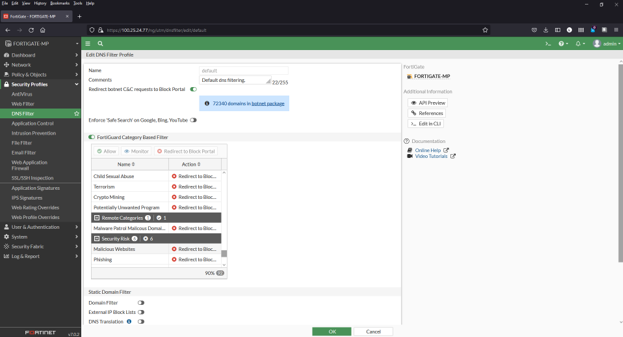
3) Select Malware Patrol Malicious Domains from FortiGuard Category Based Filter menu (scroll down to Remote Categories section)

Step 3 in Adding a domain blocklist to the DNS filter in the Malware Patrol Fortinet Configuration Guide

4) Right click on Allow and select Redirect to Block Portal from dropdown menu

Step 4 in Adding a domain blocklist to the DNS filter in the Malware Patrol Fortinet Configuration Guide

Step 4.1 in Adding a domain blocklist to the DNS filter in the Malware Patrol Fortinet Configuration Guide

5) Click OK to save

FortiGate DNS Filter details: https://docs.fortinet.com/document/fortigate/7.0.2/administration-guide/605868/dns-filter

Additional resources

FortiGate Administration Guide: https://docs.fortinet.com/document/fortigate/7.0.2/administration-guide/954635/getting-started

FortiGate Administration Guide, threat data feeds: https://docs.fortinet.com/document/fortigate/7.0.2/administration-guide/9463/threat-feeds

Excellent walk-through video for adding and enabling external threat feeds: Configure and use 3rd Party threat feeds on a FortiGate Firewall by GraniteDan https://youtu.be/CarI6_URN90

If you need any assistance with this FortiGate configuration guide, please email support (@) malwarepatrol.net or contact your Account Manager.

?

MikroTik Router Configuration

??

Malware Patrol offers MikroTik-compatible versions of our Malicious Domains, DNS-over-HTTPS (DoH) Servers, and Tor Exit Nodes data feeds. This guide walks you through each step to configure your MikroTik router accordingly. If you need assistance at any point, our support team is here to help.

MikroTik is a Latvian company founded in 1996 to develop routers and wireless ISP systems. MikroTik now provides hardware and software for Internet connectivity in most countries around the world. Our experience in using industry-standard PC hardware and complete routing systems allowed us in 1997 to create the RouterOS software system that provides extensive stability, controls, and flexibility for all kinds of data interfaces and routing.”

You can follow these simple steps to configure your MikroTik to filter malicious domains to protect your network, computers, and users from getting infected by malware and ransomware. This includes domains derived from C2s, DGAs, and URLs hosting malware and ransomware binaries.

1) You will need the username and password provided to you by Malware Patrol. If you are evaluating, this will be your evaluation portal credentials. If you are a customer, you will use your account login details and portal URL.

2) Execute the following commands in MikroTik’s CLI:

Malicious Domains

/system script  add name=”MP_UpdateMaliciousDomains” owner=”admin” policy=ftp,read,write dont-require-permissions=no source={
/tool fetch url=”https://_username_:_password@eval.malwarepatrol.net/feeds/files/MP_malicious_domains.mikrotik.rsc” mode=https

/ip firewall address-list remove [find where comment=”MP_Malicious_domain”]
/import file-name=MP_malicious_domains.mikrotik.rsc ;
}

/ip firewall filter add chain=forward action=drop protocol=tcp dst-address-list=MP_MaliciousDomains log=yes log-prefix=”Blocked_by_MP_MaliciousDomains”

/system scheduler add name=MP_UpdateMaliciousIPsFeed interval=1h on-event=MP_UpdateMaliciousIPs owner=admin policy=ftp,read,write

The code above will create a script that downloads and updates the Malicious Domains list. The system scheduler portion will schedule the download and update processes to happen on an hourly basis. We advise this frequency because our lists are updated every hour.

If you encounter any difficulties during the Mikrotik router configuration process, feel free to contact our tech support at support (@) malwarepatrol.net

Configuration guides for other systems can be found on our Tech Support page.

?

Palo Alto MineMeld Configuration Guide

??

Malware Patrol Palo Alto MineMeld Configuration Guide header image for the blog post

Palo Alto MineMeld is an extensible Threat Intelligence processing framework and the multi-tool of threat indicator feeds. MineMeld can be used to collect, aggregate, and filter indicators from a variety of sources make them available for consumption to peers or the Palo Alto Networks security platforms.

That means this versatile tool can be used to grab data feeds of IPs, URLs, and domains. Also, aggregate, deduplicate, process it and output the final result in formats suitable to Palo Alto Networks products. MineMeld can also be configured to send data to Splunk.

Malware Patrol has determined the steps required to allow our customers to utilize our data feeds on MineMeld. The following steps are required to create a miner, a processor, and finally an output. Also, the entire process follows the logic of creating and configuring prototypes based on existing entities and later cloning them. Keep this in mind and the logic will be clearer as we move forward through each step.

We’ve created a specific Enterprise data feed for MineMeld consumption. The URL can be founded in the evaluation or customer portal. If you are a current customer, please contact your Sales Manager to have the feed added to your portal. This configuration guide shows how to extract URLs from that feed. In addition, the same logic can be applied to create new a miner, processor, and output for other indicators contained in the feed.

1) If you do not have MineMeld installed and configured yet, you can download a pre-configured virtual machine or the software’s source code from Github. Please visit the following URLs for more details:

a. https://www.paloaltonetworks.com/products/secure-the-network/subscriptions/minemeld
b. https://live.paloaltonetworks.com/t5/MineMeld-Articles/Manually-install-MineMeld-on-Ubuntu-Server-16-04/ta-p/253336

2) Once you successfully log in to MineMeld, click on Config to view the current list of miners, processors and œoutput.

Step 2 in the Malware Patrol Palo Alto MineMeld Configuration Guide

3) To configure a new miner prototype we will use an existing miner. Click the blue icon on the lower right corner of the screen named browse prototypes. In the search field, type “ssla” and once the list is updated, select “sslabusech.ipblacklist.”

Step 3 in the Malware Patrol Palo Alto MineMeld Configuration Guide

4) Once the miner configuration is displayed, click on “new.”

Step 4 in the Malware Patrol Palo Alto MineMeld Configuration Guide

5) Make the necessary changes to each field according to the following image. Special attention must be taken to the field CONFIG and the line url. This must be filled with the URL of Malware Patrol’s data feed for the MineMeld data feed. As explained previously the address can be found in your evaluation or customer portal. After properly populating the fields, click “ok.”

Step 5 in the Malware Patrol Palo Alto MineMeld Configuration Guide

6) You will see the new miner prototype created, click on it.

Step 6 in the Malware Patrol Palo Alto MineMeld Configuration Guide

7) When the miner loads, click on clone.

Step 7 in the Malware Patrol Palo Alto MineMeld Configuration Guide

8) Fill the two fields as shown in the following screenshot and click “ok.”

Step 8 in the Malware Patrol Palo Alto MineMeld Configuration Guide

9) The screen will show all the available items, including the new miner. Click on “commit” to push the changes. Wait a few seconds as some components of MineMeld will be restarted.

Step 9 in the Malware Patrol Palo Alto MineMeld Configuration Guide

10) Click on “nodes” and use the search field to look for malwarepatrol You should see the new miner. Pay close attention to indicators that should show an increasing amount of items pulled from our data feed.

Step 10 in the Malware Patrol Palo Alto MineMeld Configuration Guide

11) To create the processor prototype, click on config and then the blue icon on the lower right corner of the screen named browse prototypes. Search for processor. In the list displayed, click on stdlib.aggregatorFileName.

Step 11 in the Malware Patrol Palo Alto MineMeld Configuration Guide

12) Click “new” and fill the form fields according to the following screenshot and click “ok.”

Step 12 in the Malware Patrol Palo Alto MineMeld Configuration Guide

13) Once the list of prototypes is shown, click on the newly created one and choose “clone.” Fill the form according to the next screenshot.

Step 13 in the Malware Patrol Palo Alto MineMeld Configuration Guide

14) Clicking on config you should see a screen similar to the following:

Step 14 in the Malware Patrol Palo Alto MineMeld Configuration Guide

15) Now to create an output prototype, click the blue icon on the lower right corner of the screen named “browse prototypes.” Search for output and in the list that will be displayed, click “stdlib.dagPusher.”

Step 15 in the Malware Patrol Palo Alto MineMeld Configuration Guide

16) Fill the form fields as in the following screenshot and click”ok.”

Step 16 in the Malware Patrol Palo Alto MineMeld Configuration Guide

17) In the list that will be displayed, click the newly created prototype.

Step 17 in the Malware Patrol Palo Alto MineMeld Configuration Guide

18) Click “clone.”

Step 18 in the Malware Patrol Palo Alto MineMeld Configuration Guide

19) At this point, the list displayed should contain one new item for a miner, rocessor and output. Click on commit to make the changes effective. Wait a few seconds as some components of MineMeld will be restarted.

Step 19 in the Malware Patrol Palo Alto MineMeld Configuration Guide

20) Click on nodes and search for malwarepatrol. You should see the three newly created items and the count of indicators increasing. That shows that data is flowing from our data feed into the miner, processor and finally made ready by the output.

Step 20 in the Malware Patrol Palo Alto MineMeld Configuration Guide

21) Clicking on output you can see details including the URL of the finalized feed that can be consumed by Palo Alto Networks systems.

Step 21 in the Malware Patrol Palo Alto MineMeld Configuration Guide

22) For information on MineMeld and how to connect it with other Palo Alto Networks products and Splunk, please visit the following URLs.

– Create Dynamic Firewall Rules Based on MineMeld Threat Feeds: https://www.virtualizationhowto.com/2018/12/create-dynamic-firewall-rules-based-on-minemeld-threat-feeds/
– Create a MineMeld input in Splunk: https://splunk.paloaltonetworks.com/autofocus-and-minemeld.html
– Quick tour of MineMeld default config: https://live.paloaltonetworks.com/t5/MineMeld-Articles/Quick-tour-of-MineMeld-default-config/ta-p/72042
– Using MineMeld to Create a Custom Miner: https://live.paloaltonetworks.com/t5/MineMeld-Articles/Using-MineMeld-to-Create-a-Custom-Miner/ta-p/227694
– Developer’s Guide: https://github.com/PaloAltoNetworks/minemeld/wiki/Developer’s-Guide

23) If you encounter any difficulties during the configuration process, feel free to contact our tech support at support@malwarepatrol.net

Configuration guides for other systems can be found on our Tech Support page.

Evaluate Our Data

For actionable, current OTI, Malware Patrol offers a wide variety of threat intelligence feeds for use within organizations of all sizes and industries. We verify our feeds constantly – every hour in most cases – to ensure they contain only actionable indicators that protect our customers against malware infections and data breaches.  For ease of use, we format the feeds for compatibility with the most popular security tools and platforms. Contact us to learn more or to request a free evaluation.

?

SpamAssassin Configuration Guide

??

Malware Patrol provides block lists compatible with SpamAssassin.
 

Apache SpamAssassin is the #1 Open Source anti-spam platform giving system administrators a filter to classify email and block spam (unsolicited bulk email).

It uses a robust scoring framework and plug-ins to integrate a wide range of advanced heuristic and statistical analysis tests on email headers and body text including text analysis, Bayesian filtering, DNS blocklists, and collaborative filtering databases.

Apache SpamAssassin is a project of the Apache Software Foundation (ASF).”
 

You can follow these simple steps to configure your SpamAssassin to filter malicious URLs and protect your network, computers, and users from getting infected by malware.

1) Make sure your SpamAssassin instance is installed and working properly. There are several resources on the Internet that can help you configure it in your platform. If you are experiencing trouble installing and configuring SpamAssassin, start at: https://spamassassin.apache.org/

2) On the server running SpamAssassin, create a file called malware_patrol_update.sh choosing where to place it, like:
# mkdir /root/sh
# vi /root/sh/malware_patrol_update.sh

3) Log into your account with Malware Patrol and look for SpamAssassin. Right click on “download” and select “Copy link location”. You will need this URL on the next step.

4) Paste the following command into the newly created file, substituting _URL_YOU_JUST_COPIED_ with the URL you copied in the previous step:

wget --no-check-certificate -O /etc/mail/spamassassin/99_malware_patrol_blocklist.cf '_URL_YOU_JUST_COPIED_'

Feel free to customize the output filename. SpamAssassin configuration files are read in an alphanumerical order, meaning 70_*.cf will be read before 99_*.cf.

5) It is very important to make sure that the URL you have copied from your account with Malware Patrol is enclosed in single quotes.

6) Add the following line to the file and save it:

systemctl restart spamassassin.service

If Amavisd is used (so SpamAssassin is managed by it) use the following line instead and save it:

systemctl restart amavisd.service

7) Add execute permissions to the recently created file, executing this command:

# chmod +755 /root/sh/malware_patrol_update.sh

8) Execute the recently created file that will download the latest block list and restart SpamAssassin or Amavisd:

# /bin/sh /root/sh/malware_patrol_update.sh

9) Make sure the new file was correctly processed by SpamAssassin by running the following command:

# spamassassin -D --lint 2>&1 | grep "malware_patrol"
... dbg: config: read file /etc/mail/spamassassin/99_malware_patrol_blocklist.cf

10) You should now create a cron job to automatically update the Malware Patrol block list. The following command should be executed every hour:

/bin/sh /root/sh/malware_patrol_update.sh

Please choose minutes not close to 00, 01 and 59 for your cron job.

If you experience any difficulties configuring SpamAssassin to use Malware Patrol block lists, please make sure it is working properly and contact our tech support at support (@) malwarepatrol.net.
 

Special thanks to Malware Patrol user fRANz for writing this guide.

Share this post:

?

DNS RPZ Firewall Configuration Guide

?????

BIND is the world’s most used DNS server and can be configured as a DNS Firewall using RPZ files (DNS RPZ). Response Policy Zone (RPZ) enables DNS administrators to selectively block name resolution of Internet resources known to be used by cyber criminals.

Malware Patrol provides three zone files compatible with BIND 9 RPZ as one of our commercial feed options. They contain domains used to host C&Cs (command and control servers), domain names generated via DGAs (domain generation algorithms) used by malware and ransomware and domains hosting malware binaries. Its usage as a DNS firewall denies access to resources involved in malware and ransomware activities. DNS queries for these domains return a special address that advises users on why the access was blocked and prevents malware and ransomware infections, communications with C&Cs and drop zones commonly used to exfiltrate information. You can implement any or all zone files at your discretion. Follow these simple steps to configure your BIND 9 instance and protect the internal network, computers and users.

Please be advised that the usage of the malware RPZ zone may result in blocking large well known websites that are actively hosting malware and ransomware samples. The use of the DGAs and C&C zone files is less likely to deny access to renowned websites.

It is also worth noting that at this point Malware Patrol offers RPZ zone files for download AS WELL AS via access to our DNS servers for RPZ zone transfers.

1) Make sure your BIND 9 is installed and working properly. There are several resources on the Internet that can help you install it depending on your platform. If you are experiencing trouble, start at: https://www.isc.org/downloads/bind/. You should also be able to use distribution specific tools like apt-get and yum. For example: apt-get install bind9.
2) Determine the path to the configuration files used by BIND. This most likely will be /etc/bind or /etc/named. One way to find the path is to issue this command: find / -name named.conf
3) Notice: the path /etc/bind will be used throughout this How To, please adapt the commands shown here appropriately if your path is different.
4) Change to the directory that contains BIND configuration files, for example: cd /etc/bind
5) Set up cron jobs to regularly download the appropriate zone file(s) to the BIND configuration directory. URLs for the zone files can be found in your DNS RPZ data feeds portal. The DNS RPZ Firewall data feeds are updated every five minutes. You can use the MD5 hashes to validate the file’s integrity.
Add the following lines to named.conf.default-zones, according to the zones you want to use:
zone “mp_rpz_c2” {
type master;
file “/etc/bind/mp_rpz_c2.db”;
};
zone “mp_rpz_dga” {
type master;
file “/etc/bind/mp_rpz_dga.db”;
};
zone “mp_rpz_malware” {
type master;
file “/etc/bind/mp_rpz_malware.db”;
};
Add the following lines to named.conf.optionsunder the œoptions section, according to the zones you want to use:
response-policy {
zone “mp_rpz_c2”; zone “mp_rpz_dga”; zone “mp_rpz_malware”; };
Restart BIND with the following command: service bind9 restart

To make this set up effective, you should configure your customers’ DNS server(s) to point to this BIND instance. This can be easily achieved via DHCP. Still, customers may manually configure their systems to use external DNS servers, therefore bypassing this protection mechanism. To avoid that, apply firewall rules that properly deny traffic to external DNS servers.

This should be all you need to do. After that, browsers and applications that query your DNS server to resolve malicious domains will receive a safe response and won’t reach bad content.

If you experience any difficulties configuring BIND 9 to use Malware Patrol, please make sure it is working properly and contact our tech support at support (@) malwarepatrol.net.

?

Cisco ASA FirePOWER Configuration Guide

??

“With Cisco ASA with FirePOWER Services, you consolidate multiple security layers in a single platform, eliminating the cost of buying and managing multiple solutions. This integrated approach combines best-in-class security technology with multilayer protection integrated in a single device that is less costly than piecemeal security solutions.”

For more information, see Cisco’s product description: http://www.cisco.com/c/dam/en/us/products/collateral/security/asa-firepower-services/at-a-glance-c45-732426.pdf

Malware Patrol provides threat data compatible with Cisco ASA FirePOWER security intelligence feeds. There are three types of feeds that can be applied:

  1. IP addresses: includes IP addresses of malware C&Cs as well as those resolved from malware and ransomware DGAs.
  2. URLs: includes partial URLs used by malware and ransomware to contact command and control systems and drop zones.
  3. Domains: includes registered active domains generated via DGAs for malware and ransomware.

You can follow these simple steps to configure your Cisco ASA FirePOWER to filter malicious IPs and protect the internal network, computers and users from getting infected by malware. The same procedure can be followed to filter URLs and domains.

An image of the Cisco Firepower Login in the Cisco ASA Malware Patrol Configuration Guide

1) Log in to Cisco FirePOWER Management Center.

Cisco ASA Malware Patrol Configuration Guide Panel 1

2) Choose Objects > Object Management.

Cisco ASA Malware Patrol Configuration Guide Panel 2

3) Expand the Security Intelligence node, then choose Network Lists and Feeds.

Cisco ASA Malware Patrol Configuration Guide Panel 3

4) Click Add Network Lists and Feeds.
5) Enter a name for the feed (ex: MalwarePatrol_malicious_IPs).
6) Choose Feed from the Type drop-down list.
7) Enter the corresponding feed URL that can be found logging in to the Malware Patrol website.
8) Enter the corresponding feed MD5 URL that can be found logging in to the Malware Patrol website.
9) Choose the Update Frequency, we suggest one hour.
10) Choose Save.

Cisco ASA Malware Patrol Configuration Guide Panel 4


Cisco ASA Malware Patrol Configuration Guide Panel 5

11) Click Update Feeds.

Cisco ASA Malware Patrol Configuration Guide Panel 6


Cisco ASA Malware Patrol Configuration Guide Panel 7

12) Cisco ASA FirePOWER will automatically update the data feed at the chosen interval.

Cisco ASA Malware Patrol Configuration Guide Panel 8

13) Choose Policies / Access Control and click New Policy.

Cisco ASA Malware Patrol Configuration Guide Panel 9

14) Enter a meaningful Name and Description to the policy. The Default Action must be Block all traffic. On Available Devices select the devices that will be affected by the policy and click Add to Policy. When you are done, click Save.

Cisco ASA Malware Patrol Configuration Guide Panel 10

15) A new policy will be created. Click on Security Intelligence.

Cisco ASA Malware Patrol Configuration Guide Panel 11

16) On Available Objects / Networks select the object created previously (ex: MalwarePatrol_malicious_IPs), choose a zone from Available zones (Any is the default) and click on Add to Blacklist.

Cisco ASA Malware Patrol Configuration Guide Panel 12

17) The object and corresponding policy were created successfully. You can follow the same steps to use the other data feeds we provide.

Cisco ASA Malware Patrol Configuration Guide Panel 13


If you experience any difficulties configuring Cisco ASA FirePOWER to use Malware Patrol data feeds, please make sure it is working properly and contact our tech support at support (@) malwarepatrol.net.

?

pfBlockerNG Configuration Guide

Using Malware Patrol Block Lists with pfBlockerNG for Enhanced Filtering

Malware Patrol provides block lists compatible with pfBlockerNG, a package for pfSense version 2.x that allows the usage of custom block list, IP filtering, and country block functionalities.

Instructions

You can follow these simple steps to configure your pfBlockerNG to filter malicious URLs and protect the internal network, computers and users from getting infected by malware and ransomware.

1) Log in to pfSense GUI.

2) Choose System > Package Manager.

3) Choose Available packages then scroll down to pfBlockerNG and clock Save.

4) Once the package is installed, choose Firewall > pfBlockerNG.

5) On the General tab, enable the following options:

  • Enable pfBlockerNG

  • De-Duplication

  • CIDR Aggregation

  • Suppression

  • Global Logging (optional)

You may also need to adjust Interface/Rules Configuration depending on your set up.

6) Choose DNSBL from the pfBlockerNG menu. Check Enable DNSBL. And under IP Firewall Rule Setting select Deny Outbound. Click Save.

7) Click DNSBL Feeds then click +Add.

8) Enter Malware Patrol as the DNS GROUP Name.

9) Under DNSBL Source enter your URL for the Plain Text – Aggressive block list provided by Malware Patrol. The address can be found by logging in to your account with Malware Patrol. Enter a label, MP-Aggressive for example and click +Add.

10) Repeat step 9 for the Plain Text – Aggressive block list for Ransomware (optional).

11) Set List Action to Unbound and Update Frequency to Every hour (for Malware Patrol Premium members only). Click Save.

12) Click Save.

13) Choose Update from the pfBlockerNG menu. Select the Select Force optionand mark Update, then click Run.

14) The logs should present messages similar to the following:

If you experience any difficulties configuring pfBlockerNG with Malware Patrol’s block lists, please make sure it is working properly and contact our tech support at support (@) malwarepatrol.net.

Our special thanks to F34RInc for helping put together this how-to.